How to photograph building work for your website
How to take clear photos of your building work with a phone, get before-and-after shots right and write captions that explain what you did.
Take a wide photo of the finished work, then get closer to show the details. If you're taking before-and-after pictures, stand in the same place for both. Add a caption saying what you did.
You don't need to buy a camera to get started. Try this with your phone on the next job you'd like to put on your website.
Choose the job you want to show
Show the sort of work you want more of. If you mainly fit small kitchens, show a kitchen you've fitted. A large extension where you only did the skirting tells a customer less about what you offer.
Ask the customer before taking pictures. Tell them where you'd like to use the photos: on your website, social pages or Google listing. Keep a note of what they've agreed to. If they'd rather you didn't, leave it.
Keep people, paperwork, family photos, house numbers and number plates out of the shot. Check what's reflected in mirrors too. There's no need to publish the customer's address.
Which photos to take
These are worth trying. You won't need all five for every job.
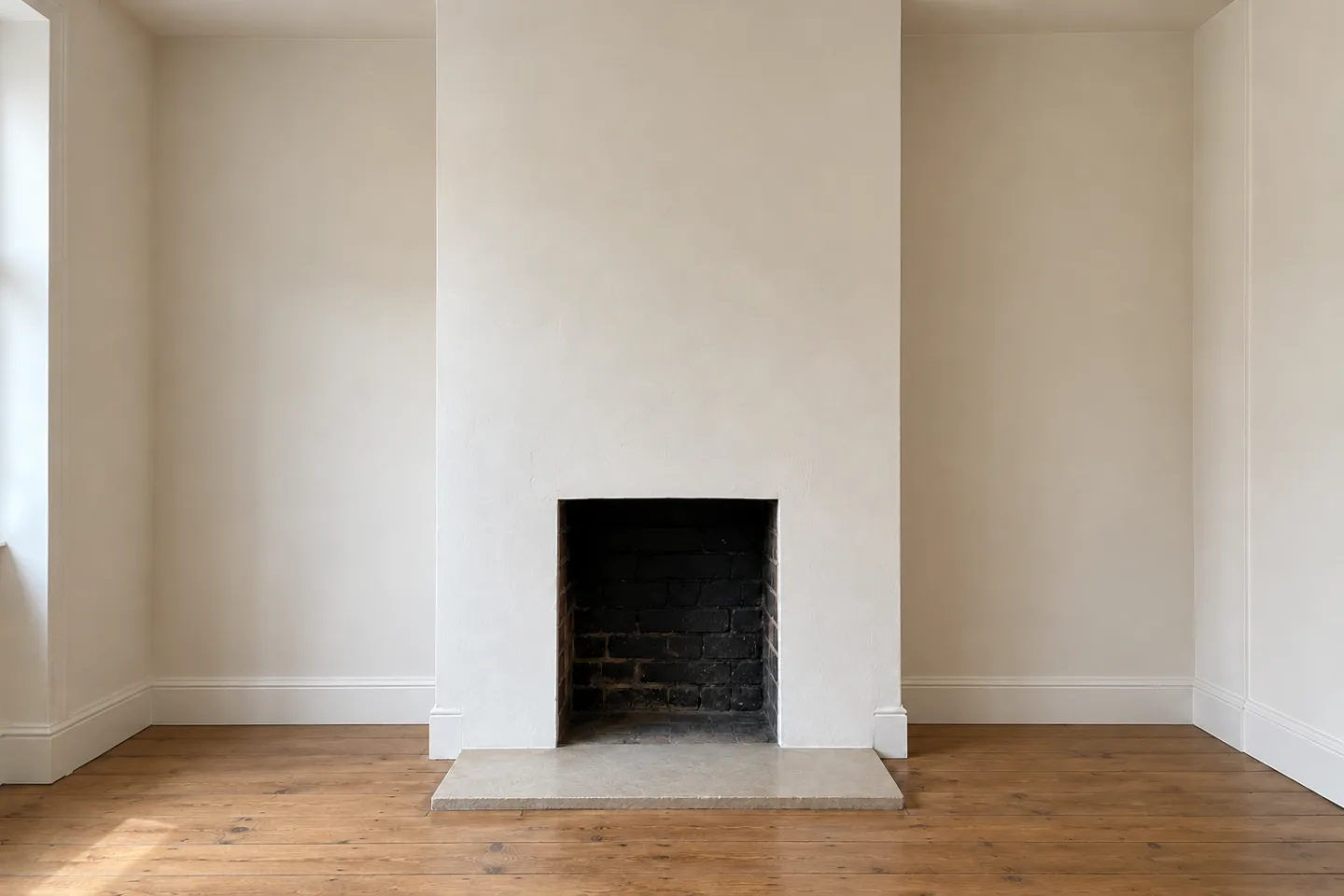
- Before you start. Take a wide shot if it will help show the change. Remember where you stood so you can take the after photo from the same spot.
- During the work. Photograph a stage you'd like to explain to customers. If it goes on the website, say that the work wasn't finished when you took it.
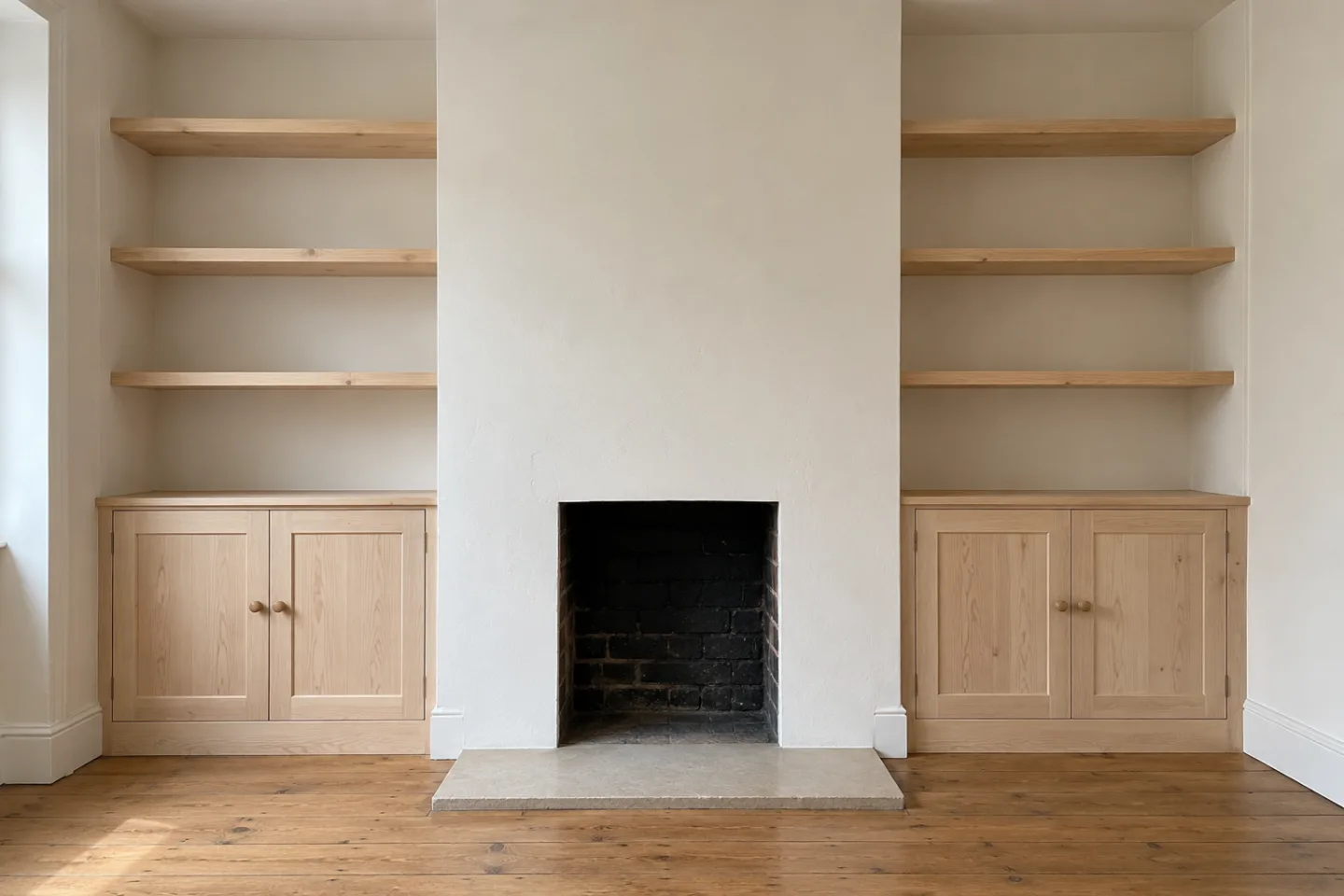
- The finished job. Stand far enough back to show the whole thing, whether that's a room, a cupboard or a patio.
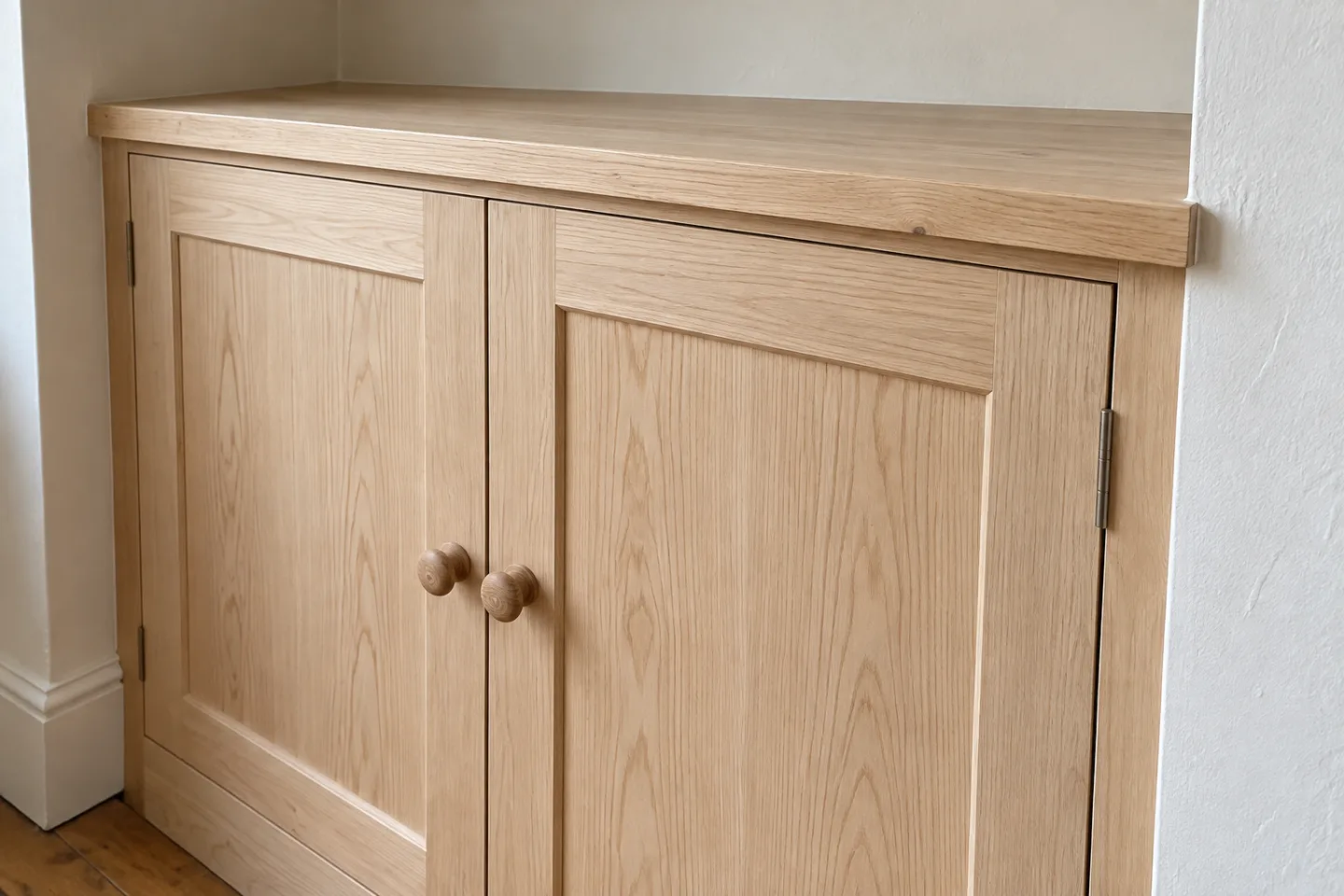
- A detail. Get closer to something that's hard to see in the wide shot, such as the cupboard doors or an edge of the paving.
- Another angle. Only add this if it shows something new. You might open a cupboard to show the storage inside.
Put your loose tools and packaging away before taking the finished photos. Ask before moving any of the customer's belongings.
For before-and-after pictures, hold the phone at the same height and include the same part of the room. Label them so people know which is which.
These pictures illustrate a made-up cupboard project. On your own website, use photos of work you've actually done.
Getting a clear picture
Wipe the phone lens first. After taking a picture, zoom in on it to check it's sharp. It's easier to take another while you're still at the job.
If a bright window makes the work look dark, try taking the picture from another angle. Keep the phone level; a door frame can help you spot when you're holding it crooked.
Leave a bit of space around the work in case the website crops the photo. If you haven't chosen a layout yet, try a landscape shot and a portrait one. Check how they look once they're on the page.
Don't edit photos to make the work look better than it is. If the photo needs that much fixing, take another or leave it out.
Make a note before you forget
A photo won't tell a customer which parts of the job you did. Jot down a few details before moving on to the next one. You can copy this into your phone's notes:
Job: [plain description]
Completed: [month and year]
Location for the website: [town or wider area, if agreed]
My part: [the work you carried out]
Work done by others: [anything in the photos that wasn't yours]
Photos: [filenames, labelled before or after]
Customer's agreement: [where you can use the photos, who agreed and when]
Keep the customer's agreement in your own records. The job details will help you write a caption for the website.
Here's a caption for the made-up cupboard example:
Built-in alcove cupboards in [town]
I made and fitted two cupboards with shelving above. These photos were taken before painting. The customer arranged the decorating separately.
That gives a customer more to go on than “Another happy customer”. Be clear about what you did, especially if other trades worked on the same job.
Putting the photos on your website
Pick the clearest photos and leave out repeated angles. If two pictures show much the same thing, you probably only need one of them. Keep the originals, even if they don't all go on the website.
Give each file a name that says what's in it, such as alcove-cupboards-before-painting.jpg. Add a caption explaining the job.
Your website editor may also have a box for an image description, called alt text. Describe what you can see: “Two unpainted alcove cupboards with three shelves above each.” This helps people who can't see the picture.
Google's image guidance recommends descriptive filenames and alt text, with relevant text near the picture. Don't fill the description with town names and keywords.
Large photo files can slow the page down. Check whether your website provider resizes them for you and what upload limits it sets. Keep the original and use a separate copy if you need to make the file smaller.
Open the page on your phone before you finish. Check that the photos load, nothing important has been cropped off and each caption sits beside the right picture.
If you're putting the photos on a Google Business Profile too, check its photo requirements. Google asks for clear, well-lit pictures that show things as they are.
Adding a photo to your website doesn't add it to Maps. Our Google Maps guide for tradespeople covers setting up the separate business listing.
If you're still choosing who will build your site, our tradesman website checklist includes questions about adding photos and making updates.